
October 19, 2026
How to Change Text Styles on Snapchat Stories
Learn how to change text styles on Snapchat Stories using built-in options, custom colors, and fancy fonts with a Snapchat Font Generator.
Changing text styles on Snapchat Stories can help you make your posts more personal and interesting. You can use different fonts, colors, and text sizes to match your photos, videos, or mood.
Snapchat offers built-in text editing options that let you customize your message before sharing it with friends.
You can also adjust the position and size of your text to make it easier to read. With a few simple changes, you can make your Story text look the way you want.
Steps to Follow to Change Text Styles on Snapchat Stories
Snapchat lets you choose from several built-in text styles when creating a Snap. Follow these steps to customize your text:
- Open Snapchat and take a photo or record a video. You can also select an image or video from your camera roll.
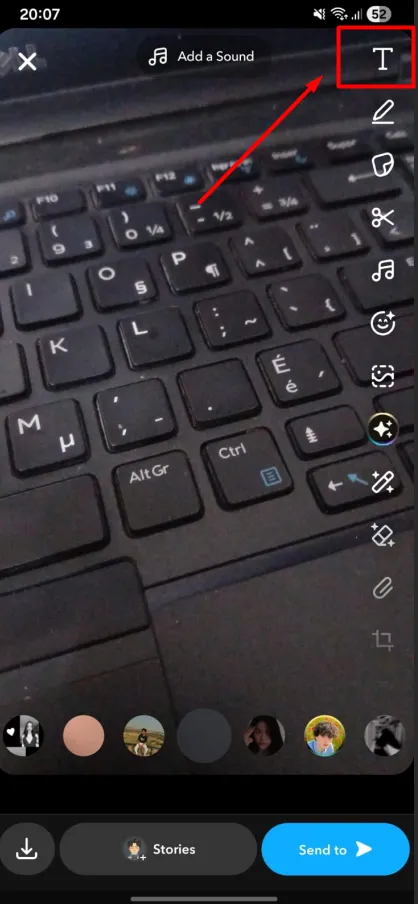
- Tap the Text (T) icon on the right side of the screen.
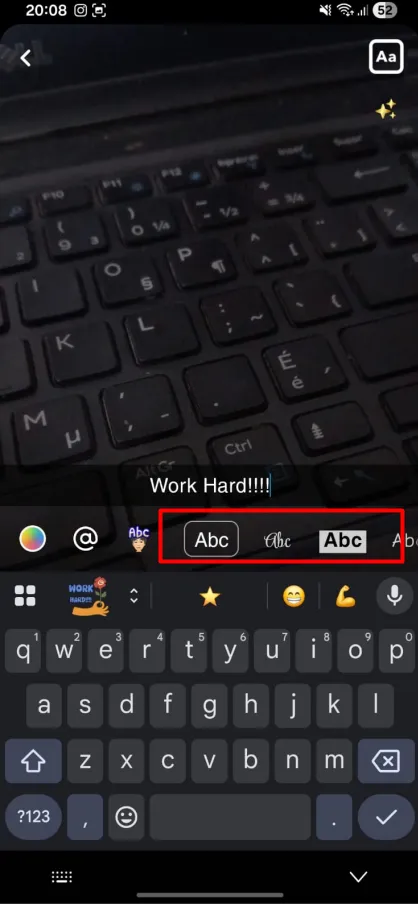
- Type the text you want to add to your Story.
- Browse the available text styles and select the one you like. The options may vary depending on your app version.
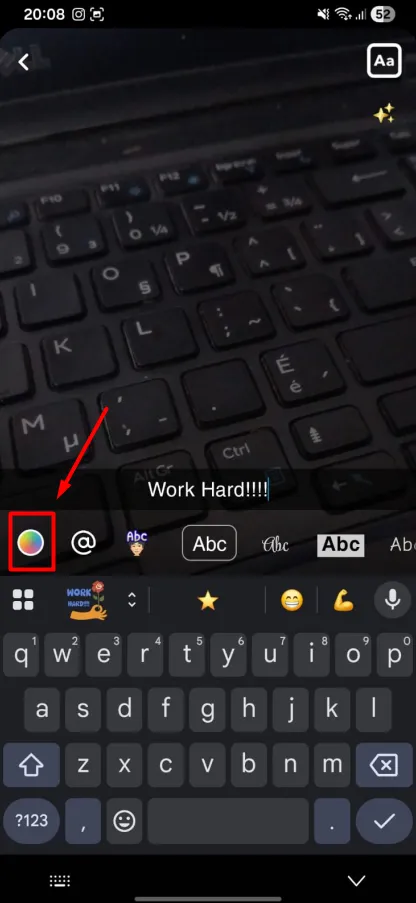
- Use the color palette to change the text color.
- If formatting options such as bold or italic are available on your device’s keyboard, use them to change the appearance of your text.
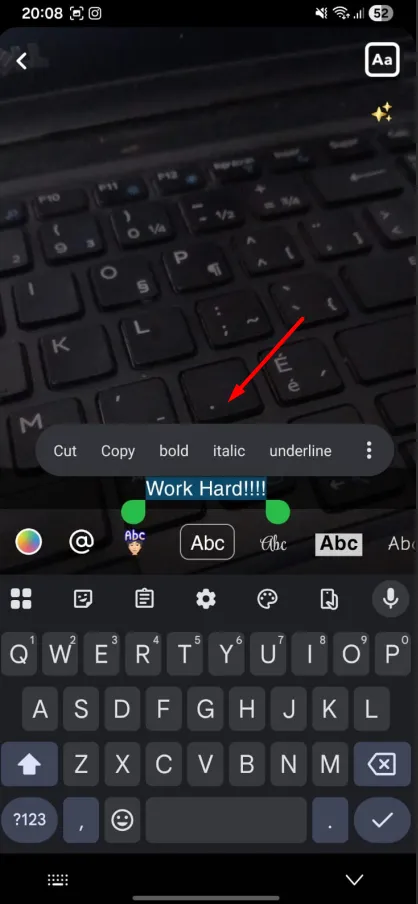
- Pinch the text with two fingers to resize it, where supported. You can also drag it to another position on the screen.
- Review your Snap and tap the Story button to share it.
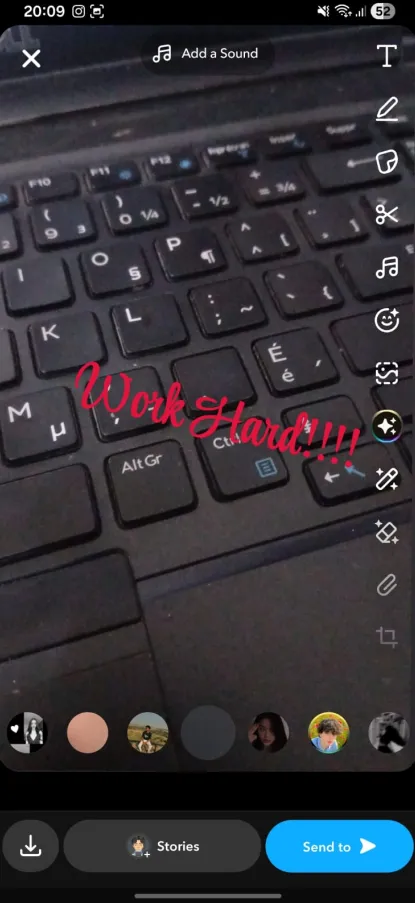
These options are useful for adding captions, short messages, and other text to your Stories. You can also adjust the text placement to keep it from covering important parts of your photo or video.
How to Add Fancy Fonts to Snapchat Stories?
Snapchat provides several built-in text styles, but you cannot choose from every font style available on your device. Its text editor also does not let you install custom fonts directly. If you want more variety, you can use Snapchat Font Generator to create stylized text.
It converts regular text into different Unicode styles. These styles use special characters that resemble bold, cursive, bubble, and other font designs. You can copy the converted text and paste it into your Snapchat Story.
For example, you can turn the word Snapchat into different styles:
- Bold: 𝐒𝐧𝐚𝐩𝐜𝐡𝐚𝐭
- Cursive: 𝒮𝓃𝒶𝓅𝒸𝒽𝒶𝓉
- Bubble: ⓈⓃⒶⓅⒸⒽⒶⓉ
- Small: ˢⁿᵃᵖᶜʰᵃᵗ
- Double-struck: 𝕊𝕟𝕒𝕡𝕔𝕙𝕒𝕥
How to Use Snapchat Font Generator
You can create and copy fancy text in a few simple steps:
- Open the Snapchat Font Generator tool.
- Enter the text you want to use in your Story.
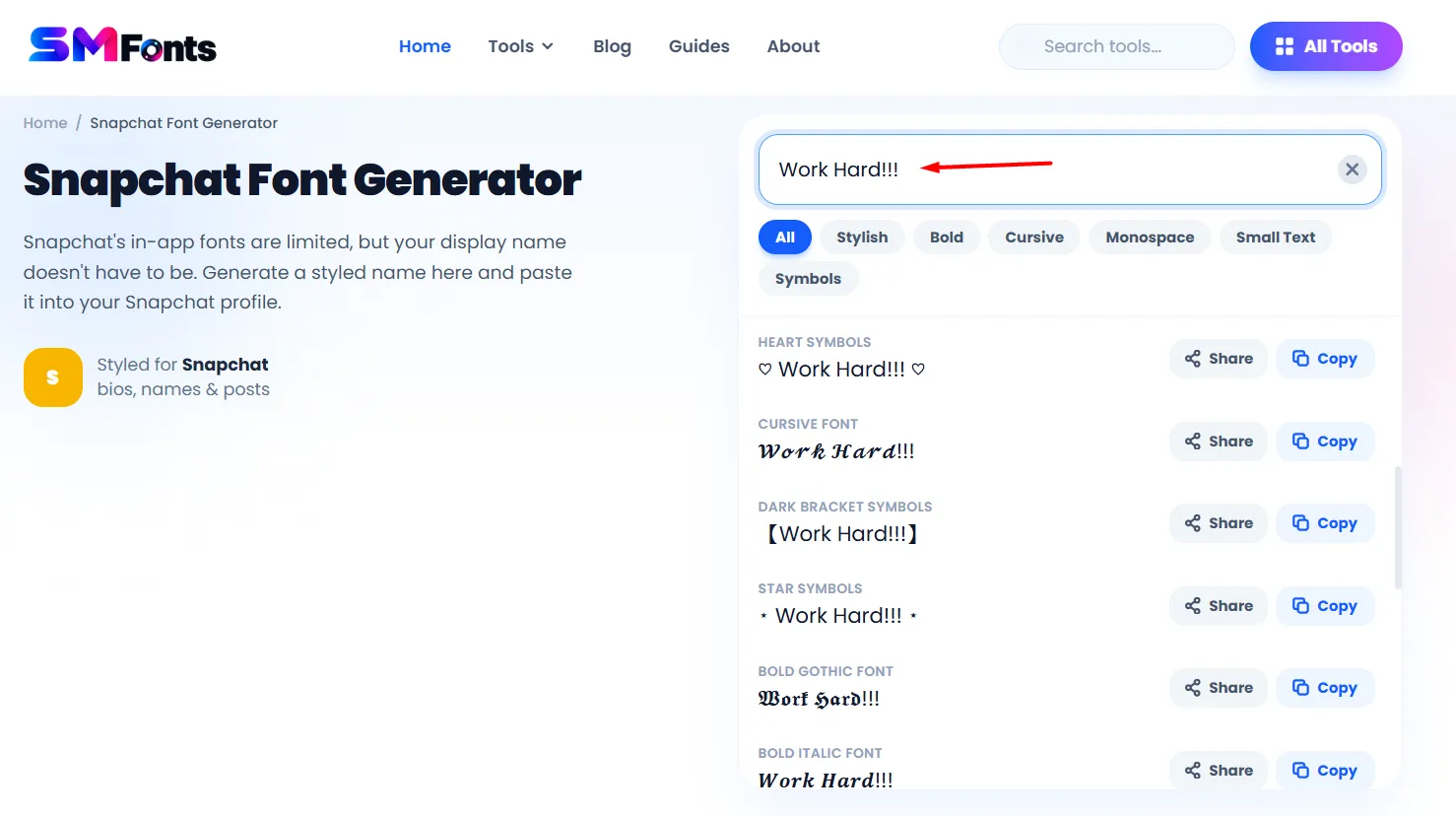
- Browse the generated text styles and choose your favorite.
- Copy the stylized text.
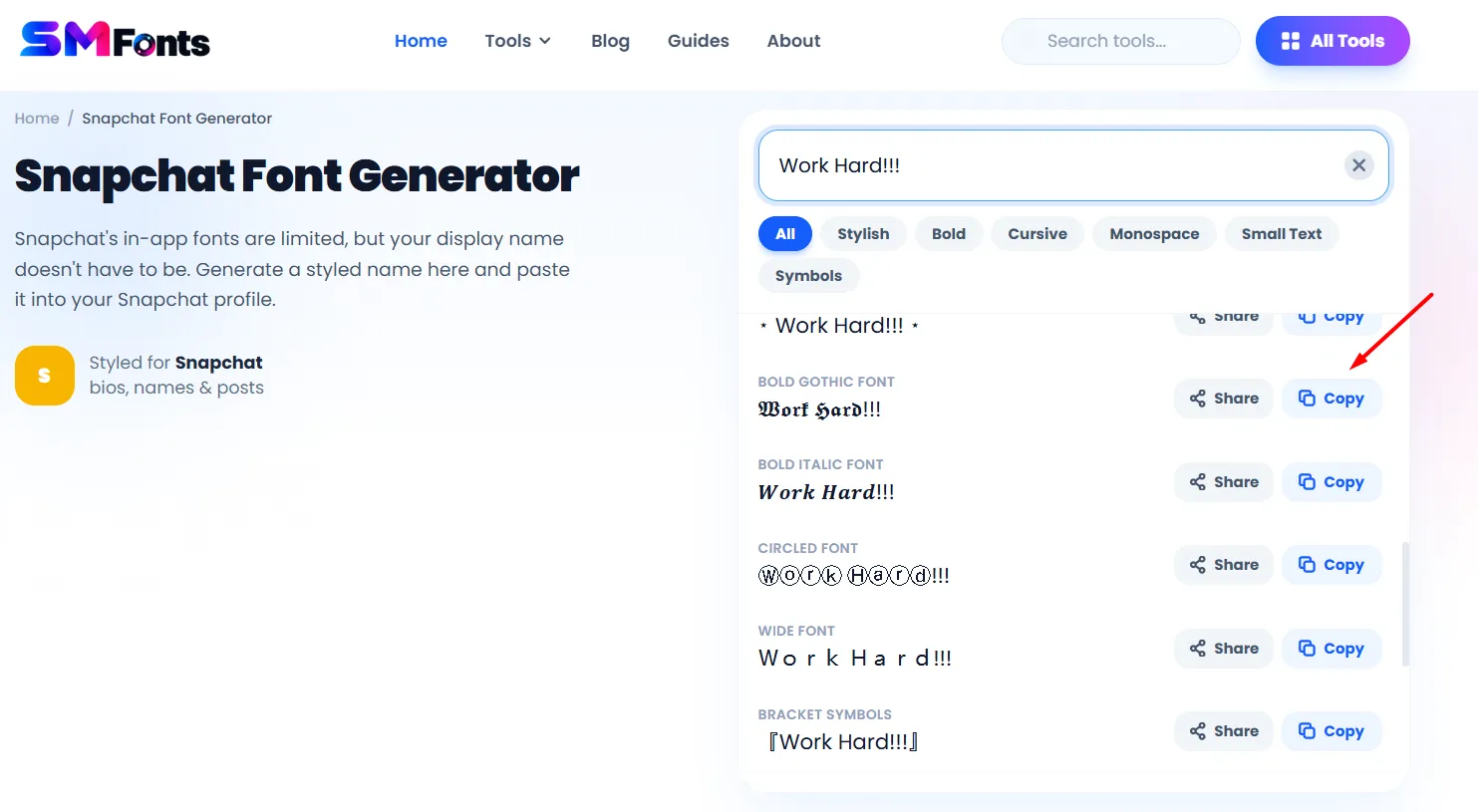
- Open Snapchat and create a new Snap.
- Tap the Text (T) icon and paste the copied text into the text field.
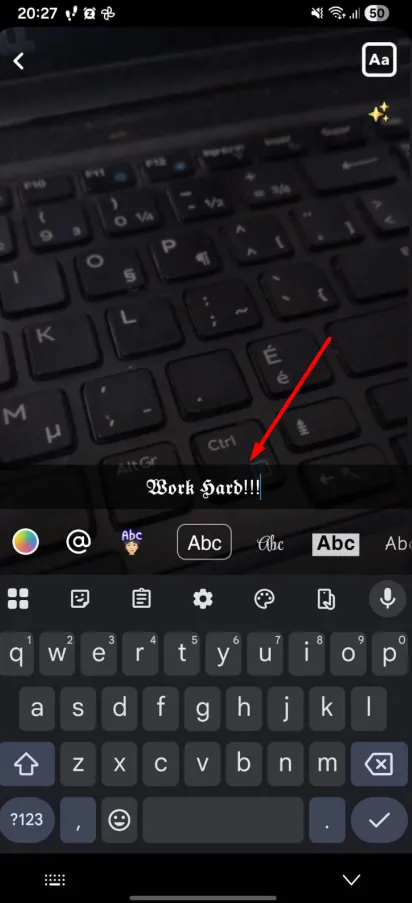
- Adjust its size and position, then share your Story.
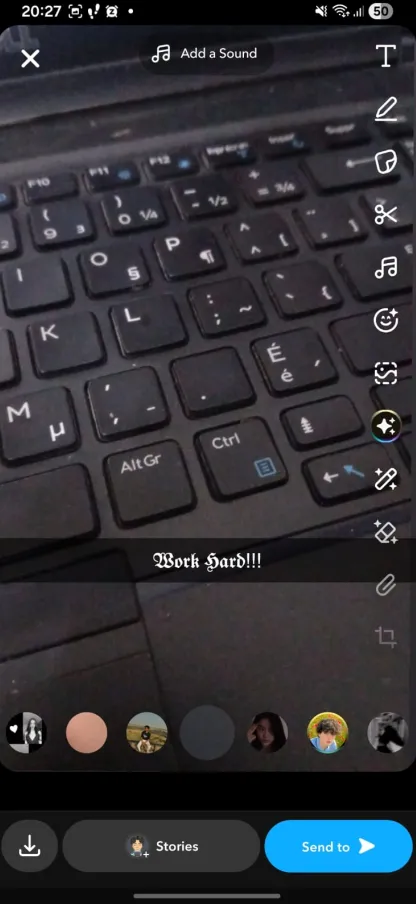
You do not need to install a new font on your phone. The generator uses Unicode characters, so you can copy and paste the text into Snapchat. However, some characters may appear differently or may not display correctly on certain devices.
Tips for Using Text Styles on Snapchat Stories
Keep these tips in mind when customizing your Story text:
- Choose readable colors: Use text colors that stand out against your photo or video. Light text may be difficult to read on a bright background.
- Keep your message short: Short captions are easier to read while viewers watch your Story.
- Avoid using too many styles: Combining several different styles can make your Story look cluttered. Stick to one or two styles when possible.
- Position text carefully: Place your text where it does not cover faces or other important details.
- Preview before posting: Check the text size, color, and position before sharing your Snap. Make sure everything looks right on the screen.
Final Words
Changing text styles on Snapchat Stories is a simple way to personalize your posts. You can use the built-in editor to adjust text styles, colors, sizes, and placement.
If you want more variety, a Snapchat Font Generator lets you create fancy Unicode text and copy it into your Story. Try different styles, but keep your text readable so viewers can easily understand your message.