
October 16, 2026
How to Use Different Fonts in X (Twitter) Posts
Learn how to use different fonts in X (Twitter) posts, including bold, italic, cursive, and fancy styles, with a free online font generator.
Different fonts can make your X (Twitter) posts look more interesting and help you highlight important words. Although X does not offer a built-in option to change fonts in regular posts, you can use an online font generator to create different text styles.
These include bold, italic, cursive, and decorative fonts. You can copy the styled text and paste it directly into your posts, replies, or profile bio without installing any additional software.
Can You Change Fonts in X (Twitter) Posts?
X (formerly Twitter) does not have a built-in option to change fonts in regular posts. You cannot directly select bold, italic, or cursive text from the post editor. However, you can use an online font generator to create text in different styles and copy it into your posts.
These generators use special Unicode characters that look like different fonts. You can use them to highlight important words, make your posts look different, or add a personal touch to your profile.
How to Use Different Fonts in X Posts
You can use an online font generator to create different text styles for your X posts. The process is simple and does not require you to install an app.
Open Twitter Font Generator.
Type the text you want to use in your X post.
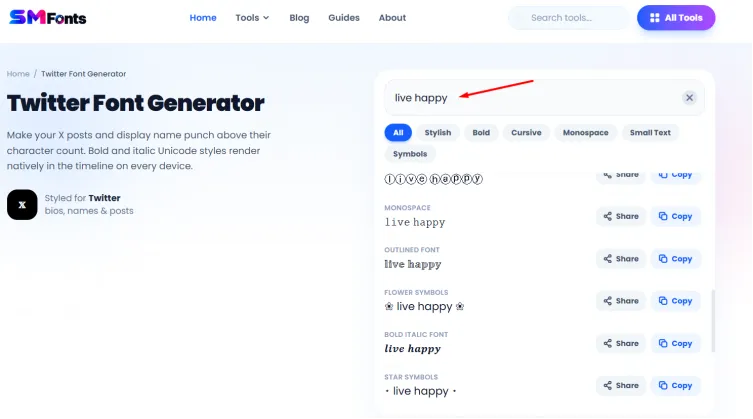
Browse the available font styles and pick one you like.
Copy the styled text.
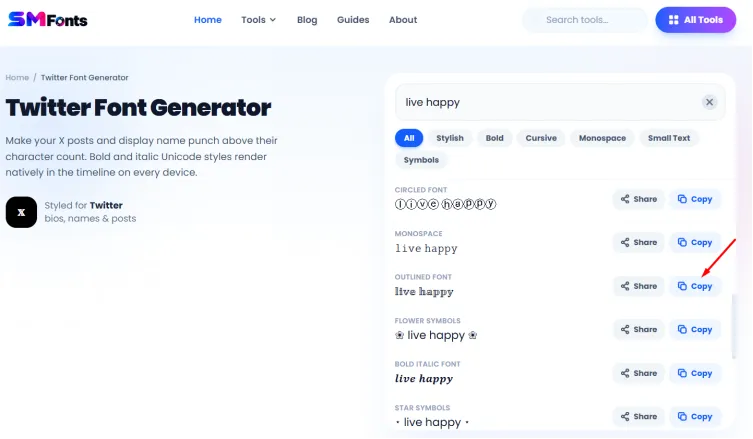
Open X and start writing a post.
Paste the copied text into the post editor.

Check how the text looks before publishing your post.
You can use the same method for replies, profile bios, and display names, as long as the selected characters meet X's requirements.
Practical Guide for Using Different Fonts on X Posts
Different font styles can help you highlight specific words or give your posts a particular look. Here are some ways to use them, along with examples.
1. Use Bold Fonts to Grab Attention
Bold fonts are useful when you want readers to notice an important word or phrase. You can use them to highlight announcements, key points, or short statements.
For example, a regular post might say:
New gaming setup coming soon!
With bold Unicode text, you can write:
𝐍𝐞𝐰 𝐠𝐚𝐦𝐢𝐧𝐠 𝐬𝐞𝐭𝐮𝐩 𝐜𝐨𝐦𝐢𝐧𝐠 𝐬𝐨𝐨𝐧!
You can use bold text for a headline or the main point of your post. Avoid making every sentence bold, as this can make the post harder to read.
2. Use Italic Fonts to Emphasize Words
Italic fonts can help you give certain words a different appearance. They work well for emphasis, short reactions, and phrases you want to distinguish from the rest of your post.
For example:
That was not the ending I expected.
Using Unicode italic text, you could write:
That was 𝑛𝑜𝑡 the ending I expected.
You can also use italic text for a short quote or a phrase that expresses your opinion. Keep the style limited to the words that need emphasis.
3. Use Cursive Fonts for a Stylish Look
Cursive fonts give text a handwritten appearance. They can be useful for personal updates, creative posts, and short messages where you want a softer style.
For example, you could write:
𝓔𝓷𝓳𝓸𝔂 𝓽𝓱𝓮 𝓵𝓲𝓽𝓽𝓵𝓮 𝓽𝓱𝓲𝓷𝓰𝓼.
This style can make a short message look different from ordinary text. However, cursive characters can be harder to read, especially in long posts. Use them for brief phrases rather than entire paragraphs.
4. Use Fancy Fonts to Make Your Posts Stand Out
Fancy fonts include decorative letters and unusual character styles. They can help your posts look different in a busy feed, especially when you want to share a short announcement or a creative message.
For example:
𝔾𝕒𝕞𝕚𝕟𝕘 𝕟𝕚𝕘𝕙𝕥 𝕤𝕥𝕒𝕣𝕥𝕤 𝕒𝕥 𝟠 ℙ𝕄!
You can use fancy text for event announcements, gaming updates, or short promotional messages. Pick a style that people can recognize easily, and avoid adding too many decorative characters.
5. Use Monospace Fonts for a Typewriter Effect
Monospace fonts give each character the same horizontal spacing. They create a typewriter-like appearance and can be useful for short technical notes, code-related posts, or text that you want to look different.
For example:
𝙷𝚎𝚕𝚕𝚘 𝚏𝚛𝚘𝚖 𝚖𝚢 𝚕𝚊𝚝𝚎-𝚗𝚒𝚐𝚑𝚝 𝚠𝚘𝚛𝚔𝚜𝚙𝚊𝚌𝚎.
This style can also help separate a short note from the rest of your post. However, it does not create a formatted code block, so do not rely on it to preserve code formatting or alignment.
6. Use Small Caps for a Different Look
Small caps use smaller uppercase-style letters to give text a compact appearance. They can work well for short headings, labels, and brief statements.
For example:
ᴛʜᴇ ɴᴇᴡ ᴜᴘᴅᴀᴛᴇ ɪs ʜᴇʀᴇ.
You could use this style to introduce a topic or highlight a short announcement. Small caps are best suited to a few words or a single sentence because they can be harder to read in longer posts.
7. Use Decorative Fonts for Your X Bio and Display Name
You can also use a font generator to style your X display name or bio. This can help you give your profile a distinct appearance without changing its overall content.
For example, a regular display name such as:
Gaming Fan
Could become:
𝙂𝙖𝙢𝙞𝙣𝙜 𝙁𝙖𝙣
You can apply similar styles to a short bio, such as a description of your interests or the type of content you share. Keep your name and bio recognizable so other users can understand your profile easily.
Remember that X usernames have separate formatting rules. Unicode styles that work in a display name or bio may not be accepted in your username.
Instagram also allows you to use decorative fonts to give your bio a unique look. In case you don’t know how to do it, you can read our guide on “How to Change Fonts in Your Instagram Bio?” This guide gives practical guidelines on how to use different font styles in your Instagram bio.
Tips for Using Different Fonts on X
Different fonts can help your posts stand out, but using them carefully will make your content easier to read.
Pick readable styles: Use simple bold or italic characters for important words. Save decorative styles for short phrases.
Avoid mixing too many styles: Using several font styles in one post can make it look cluttered.
Check character support: Some Unicode characters may appear differently across devices, browsers, and operating systems.
Keep accessibility in mind: Screen readers may interpret stylized Unicode text differently from ordinary letters. Use standard text for important information whenever possible.
Check your character count: X posts have character limits, and some Unicode characters may count differently from ordinary text. Check the counter in the post editor.
Preview before posting: Make sure the text looks correct after you paste it into X.
Use fonts where they make sense: Bold text can highlight an announcement, while cursive text may suit a short personal message. Pick a style that matches your post.
Final Words
Using different fonts in X posts is a simple way to give your content a distinct appearance. Since X does not provide a built-in font selector for regular posts, you can use an online font generator to create bold, italic, cursive, and other text styles.
Copy the style you like and paste it into your post or profile. Keep your text readable, use decorative fonts in moderation, and check how your post looks before publishing it.